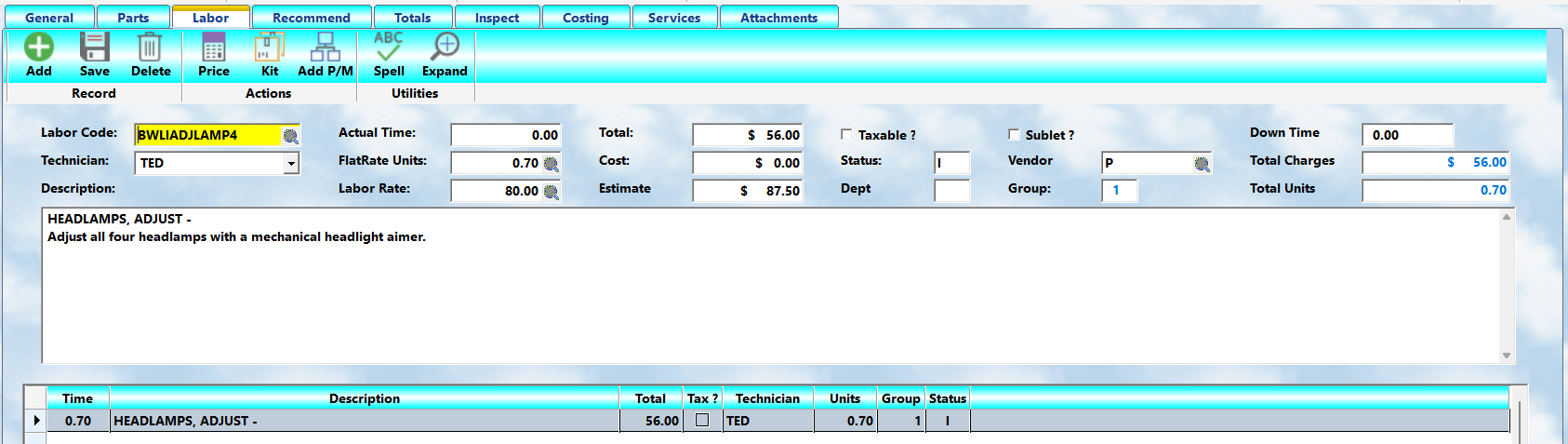
Labor entries describe the services performed on the workorder. They are one of the most important parts of the estimate and invoice because they explain to the customer exactly what was done, why it was needed, and what value your shop provided.
Clear labor descriptions improve professionalism, reduce confusion, and create a permanent service record that will be useful in the future.
 Adding a Labor Item
To add labor to a workorder:
1.Select the Labor tab.
2.Press Add.
3.Enter a Glossary code, or use the lookup icon to search.
4.Review or edit the description.
5.Enter technician, time, rate, tax, sublet, department, and other applicable fields.
6.Press Save.
If you do not press Add first, you are not creating a real labor record. If you do not press Save, the entry may not be retained.
Glossary Codes
Labor descriptions are normally entered from the Labor Glossary.
The Glossary provides:
•Consistent service descriptions
•Faster data entry
•Standard pricing and time values
•Clear customer communication
•Better service history reporting
If you know the code, type it directly. If not, use the lookup icon to search by system, group, or service.
Non-Glossary / Blank Entries
If you need to write a unique labor description not already in the Glossary, use a blank code such as B.
The system will allow you to type the full description manually.
When finished, you may be asked whether to save the new description to the Glossary. Answer Yes only if you want this wording available for future use. Otherwise, answer No.
 Save
Save
Always press Save after completing or editing a labor entry.
 Delete
Use Delete to remove a highlighted labor entry.
When deleted, related tracked values are automatically reversed where appropriate.
 Price Level
MLS 2026 supports multiple labor price levels.
The system normally defaults to Retail, but alternate levels may be selected for:
•Fleet accounts
•Wholesale clients
•Discounted work
•Special pricing arrangements
Once a price level is selected, it remains active until changed again.
 Building Kits
The Kit Builder can create a reusable service kit from the highlighted labor item and selected parts already on the workorder.
This is useful for services performed repeatedly, such as:
•Oil services
•Brake jobs
•Tune-ups
•Common inspections
Once created, the kit can be used on future workorders.
 Add P/M
Use Add P/M to add the highlighted labor service to the Preventative Maintenance Scheduler for this vehicle.
This allows MLS 2026 to track when the service should be performed again based on time, mileage, or usage.
 Expand
Long labor descriptions may be difficult to read in the standard entry field.
Use Expand to open a larger editing window for easier review and modification. This allows for speech mode and AI review of the written text.
Labor Field Details
Technician
Enter the technician who performed the work.
This information is stored in the service history and may print on the final invoice.
Using actual names is often more useful than codes when reviewing old service history.
Actual Time
Actual time records the clock time spent performing the service.
This may be used for:
•Efficiency reporting
•Job costing
•Productivity analysis
Units
Units represent the flat-rate or book time assigned to the service.
Fractional hours are entered in decimal form.
Examples:
•0.1 = 6 minutes
•0.5 = 30 minutes
•1.0 = 1 hour
Glossary entries may automatically supply unit values.
Rate
The rate is the hourly labor charge used to calculate the labor total.
The system supplies the default rate, but it may be changed when appropriate.
If there should be no labor charge, enter 0.00.
Total
The total is the customer charge for the labor item.
MLS 2026 calculates this from Units × Rate, but you may override the total with a fixed amount.
Cost
The cost field is calculated from the technician costing setup.
It may be based on:
•Actual time
•Flat-rate units
•Technician cost factor
For sublet labor, enter the vendor cost here.
Item Estimate
If the labor entry came from the Glossary, this field may show the estimated charge associated with the service.
Tax
Check this box if the labor item is taxable.
The Glossary provides the default value, but it may be changed on the workorder if needed.
Sublet
Check this box if the service was performed by an outside vendor.
Sublet services are often reported separately and may require special accounting or tax handling.
Status
The status indicates whether the labor item belongs to the Estimate or Invoice.
Labor marked as Estimate does not appear on the final invoice until converted or approved as appropriate.
Vendor
If the work was performed by an outside vendor, enter the vendor account code.
Use the lookup option if needed.
Department
If departments are being used, assign the labor item to the proper department.
This supports reporting and General Ledger integration.
Down Time
Down time tracks periods when the vehicle or work area is unavailable, such as waiting for parts or outside service.
This can help management understand lost productivity.
Labor Descriptions
The labor description is your most important written communication with the customer.
Avoid vague abbreviations such as:
R&R Radiator
Instead, write descriptions that clearly explain the work performed in language the customer can understand.
Good descriptions should be:
•Clear
•Complete
•Professional
•Customer-friendly
Strong descriptions build trust and reduce future disputes.
Labor Charts
MLS 2026 can track historical labor information by service code, year, make, and model.
When available, the system may display:
•High labor units
•Low labor units
•Average labor units
•High charges
•Low charges
•Average charges
This information is generated from completed workorders and can assist in estimating similar future services.
Editing Labor
To edit a labor item:
1.Highlight the item in the browse list.
2.Modify the desired fields.
3.Press Save.
Changes apply only to the current workorder unless specifically saved to the Glossary.
Saving a New Entry to the Glossary
If you create a custom labor description and decide it would be useful in the future, MLS 2026 can save it to the Labor Glossary.
You will be asked to assign a code.
Pricing information is not automatically transferred, so review the new Glossary entry later if rates, units, taxes, or defaults should be added.
Best Practice
Labor entries should never be treated as “just billing lines.”
They are:
•Customer communication
•Technician documentation
•Service history
•Legal support
•Profit analysis
•Future reference
The better your labor descriptions, the stronger your workorder, invoice, and customer relationship will be.