When a workorder is started, one of the first steps should be entering the current odometer reading in the Mileage In field on the General tab.
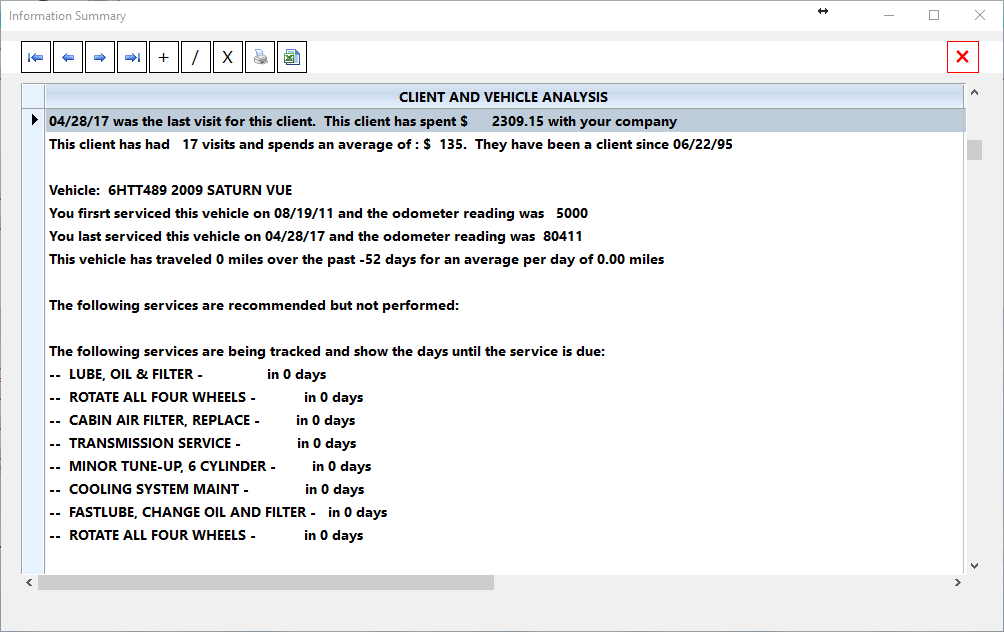
Once the mileage has been entered, press the Analysis button. This feature provides a powerful summary of the vehicle, client, service history, recommendations, preventative maintenance, and inspection concerns — all in one convenient display.
Rather than searching through multiple screens independently, the Analysis display gathers the most important information together immediately so you can discuss the vehicle intelligently and professionally with your client.
Why the Analysis Screen is Important
The Analysis screen helps the service advisor:
•Quickly understand the history of the vehicle
•Review previous recommendations
•Identify overdue maintenance
•Recognize loyal clients
•Improve customer communication
•Increase service consistency
•Present additional needed services professionally
This tool is especially valuable when:
•A vehicle has not visited recently
•Multiple recommendations are pending
•Preventative maintenance may now be due
•The customer is deciding whether to approve additional work
The Analysis screen allows the advisor to speak confidently and knowledgeably without manually searching through multiple records.
Client Information
The Client Information section summarizes the customer relationship with your business.
Displayed information includes:
•Client name
•Number of visits
•Average repair order amount
•Total dollars spent
•Date of first visit
This information quickly helps you recognize:
•Long-term loyal customers
•High-value clients
•Infrequent visitors
•New customers
Understanding the relationship history often helps guide:
•Communication style
•Service recommendations
•Customer retention efforts
•Goodwill decisions
Vehicle Information
This section focuses specifically on the vehicle currently being serviced.
Displayed information includes:
•Date of first service
•Date of last visit
•Mileage driven since the last service
•Average daily mileage
This information helps estimate:
•Vehicle usage patterns
•Driving habits
•Maintenance timing
•Wear expectations
For example:
•A vehicle averaging high daily mileage may require more aggressive maintenance scheduling.
•A vehicle driven very little may require age-based recommendations instead of mileage-based services.
Recommendations
Any open recommendations from previous visits are displayed automatically.
These recommendations remain active until:
•The service is completed
•The recommendation is manually removed
This helps prevent important service needs from being forgotten.
It is always wise to ask the customer:
•Whether the work was completed elsewhere
•Whether they still wish to consider the recommendation
If work was completed elsewhere:
•Use the Needs button to remove the recommendation from the pending list.
Preventative Maintenance Schedule
The PM Schedule section displays preventative maintenance services currently being tracked for the vehicle.
Examples may include:
•Oil services
•Transmission service
•Timing belt replacement
•Coolant service
•Brake fluid service
The display shows:
•Which services are being monitored
•How many days remain until service is due
This information helps advisors:
•Plan future maintenance
•Improve vehicle reliability
•Increase customer confidence
•Reduce emergency breakdowns
Complete details are covered in the Preventative Maintenance Scheduler section of this manual.
Inspection Concerns
The Inspection Checklist system allows technicians to document the observed condition of vehicle systems after service.
Any items that were:
•Marked for future review
•Identified as failed
•Flagged as concerns
will appear in this section of the Analysis display.
This allows service advisors to:
•Review unresolved concerns with the client
•Track deteriorating conditions
•Improve safety awareness
•Provide consistent follow-up
The Inspection Checklist is an extremely valuable customer relations tool because it demonstrates that the shop actively evaluates the overall condition of the vehicle rather than simply repairing isolated concerns.
Floating Window Operation
The Analysis screen operates as a floating window.
This means you may:
•Move it anywhere on your monitor
•Keep it visible while editing the workorder
•Reference the information while discussing services with the client
Many service advisors prefer placing the Analysis window beside the active workorder screen for quick reference during estimate preparation and customer discussions.