Whenever an Estimate, Invoice, Counter Sale, Receivable Statement, or Worksheet is printed, it is helpful to include text at the bottom of the document explaining warranties, disclaimers, policies, or other important information. These sections are commonly referred to as document “footers.”
MLS 2026 prints these sections using Rich Text Formatting (RTF), allowing you to create professional-looking documents with multiple fonts, sizes, colors, alignment styles, and emphasis formatting.
If you do not wish to print a footer on a particular document type, simply leave that section blank. This is especially useful when using pre-printed forms that already contain legal or warranty information.
The following editable text sections are included:
Estimate
Your Estimate footer should clearly define the conditions under which work may proceed.
Typical Estimate information includes:
•Authorization for repairs
•Permission to operate or road test the vehicle
•Limits of shop responsibility and liability
•Procedures for handling disputes
•Payment terms and conditions
•Customer approval signature area
A properly written estimate protects both the customer and the repair facility.
Invoice
The final Invoice should clearly explain:
•Warranty terms
•Conditions of acceptance
•Payment expectations
•Customer acknowledgment of satisfactory repair completion
It is strongly recommended that invoices include:
•A customer signature line
•A statement confirming acceptance of the completed work
•Clearly written warranty limitations
If warranty or policy terms are not written clearly, disputes become much more difficult to resolve.
Invoice Tag
The Invoice Tag provides a short message area that prints on invoices.
Typical uses include:
•Business hours
•Seasonal reminders
•Promotional specials
•Service recommendations
•Holiday notices
•Marketing messages
Because this area is easy to modify, many shops update it regularly throughout the year.
Counter Sale
Counter Sale text should explain:
•Return policies
•Exchange procedures
•Warranty handling
•Core return policies
•Refund limitations
Clear wording helps prevent misunderstandings at the counter.
Worksheet
Many shops use the Worksheet footer as a technician inspection form.
Common uses include:
•Visual inspection checklists
•Tire condition notes
•Brake measurements
•Fluid recommendations
•Future service observations
•Technician comments
These checkoff sections help:
•Verify completed inspections
•Reinforce professionalism
•Improve customer confidence
•Document recommendations
When estimating remaining service life, always be conservative. Overestimating component life can create customer dissatisfaction and possible liability issues.
A/R Tag
Accounts Receivable statements may include a short advertising or informational tag line.
Typical examples include:
•Seasonal specials
•New business hours
•Fleet service availability
•Financing options
•Thank you messages
•Service reminders
Because statements are mailed regularly, this becomes an effective and inexpensive customer communication tool.
The Rich Text Format (RTF) Editor
MLS 2026 includes a full Rich Text Editor for creating and formatting document text sections.
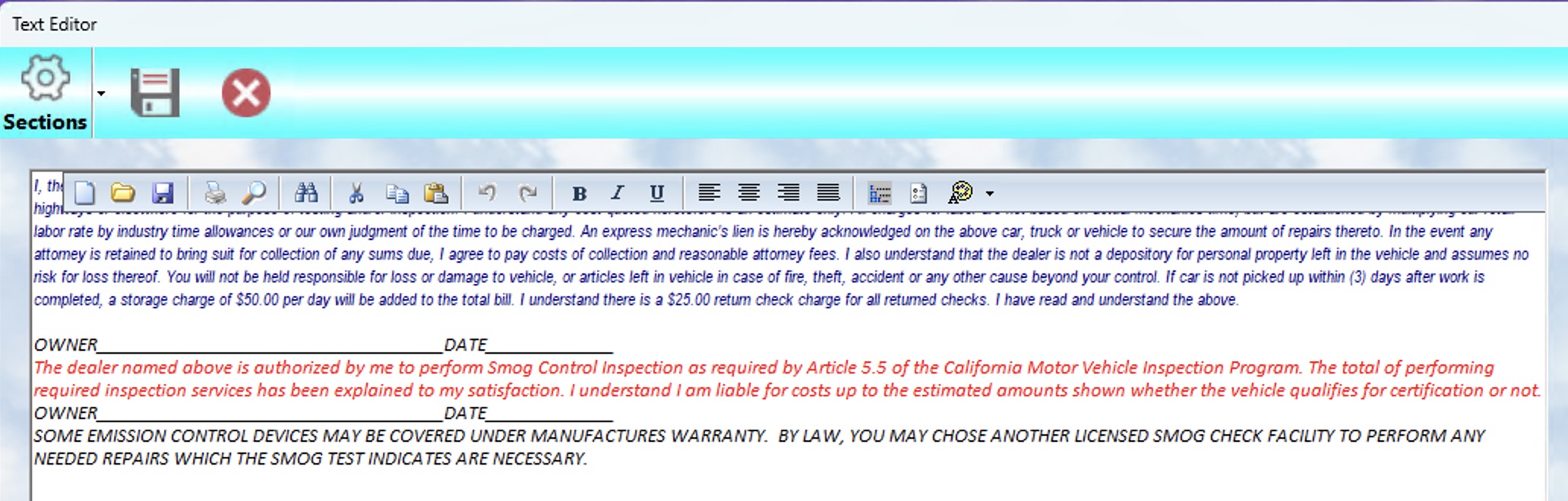
The editor supports:
•Multiple font styles
•Font sizes
•Text colors
•Bold, underline, and emphasis formatting
•Left, center, right, or justified alignment
•Paragraph formatting
•Standard Windows copy and paste functions
The editor also includes live spell checking. Misspelled words are underlined as you type.
Formatting Text
Most formatting controls are located on the editor toolbar.
To apply formatting:
1.Highlight the text you wish to modify
2.Select the desired formatting option from the toolbar
3.The changes will immediately apply to the selected text
If you are unsure what a toolbar button does:
•Point to it with the mouse
•A description tooltip will appear
Changing Fonts
To modify font properties:
1.Highlight the desired text
2.Right click with the mouse
3.Select Font
4.Choose:
oFont style
oSize
oColor
5.Select Apply or OK
This allows you to create professional-looking customer documents that emphasize important information clearly.
Important Reminder
When finished editing:
•Always press the Save button before exiting
If you exit without saving, your changes will be lost.