Transactions are any activities that change the balance of an Accounts Receivable account.
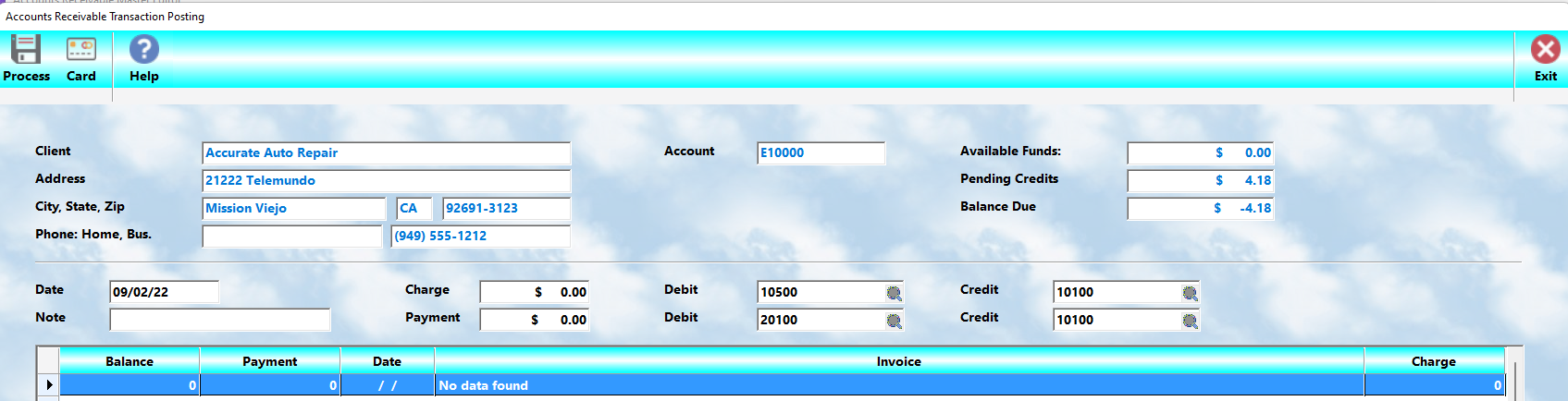
When a workorder with a balance due is closed, MLS 2026 automatically creates a transaction record. During Daily Closing, the system generates individual transaction entries for each invoice and stores them in the A/R transaction file.
•Workorder charges → Posted automatically
•Payments and adjustments → Must be entered manually
Accessing Transaction Posting
To post activity:
•Go to Receipts → Transactions
or
•Select Post from the Accounts Receivable screen
Enter the A/R account number to open the posting window. The system will display all open invoices for that client.
Transaction Processing Buttons
 Process
Finalizes and saves all entries.
⚠️ If you do not select Process, nothing is posted.
 Card
Card
Posts a credit card payment (if merchant services are configured).
 Exit
Exit
Closes the window without saving.
Posting Data Fields
Account
Displays the A/R account number (read-only).
Client Data
Shows client name and address for verification.
Pending Credits
Unused credits available on the account.
Balance Due
Current balance before new activity is posted.
Date
Defaults to today. Adjust if needed to reflect the actual transaction date.
Note
Used for:
•Invoice numbers
•Check numbers
•Payment references
Charge
Used for non-workorder charges.
•Enter positive amounts for new charges
•Enter negative amounts to:
oApply credits
oReverse previous charges
You may also enter a charge and payment at the same time for tracking purposes.
Payment
Enter the total payment received, even if applying it to multiple invoices.
•Negative payments are used to reverse returned checks (NSF)
G/L Numbers
Verify or adjust General Ledger accounts as needed.
Typical Posting Behavior:
Charges
•Debit → Accounts Receivable
•Credit → Income
Payments
•Debit → Cash
•Credit → Accounts Receivable
This removes the balance from A/R and places it into your cash account.
Transaction List (Open Invoices)
Displays all open invoices, including:
•Date
•Original amount
•Remaining balance
•Description
Available Funds (Critical Field)
This shows the total amount available to apply.
⚠️ Available Funds must equal ZERO before selecting Process.
If not:
•The transaction is incomplete
•The system will not allow proper posting
Applying Funds to Invoices
Each invoice line includes:
•Activity (applied amount)
•Original amount
•Current balance
•Date and description
Steps to Apply Payments
1.Highlight an invoice
2.Double-click it
3.MLS 2026 suggests a default amount:
oLesser of invoice balance or available funds
4.Adjust the amount if needed (partial payments allowed)
5.Press Enter to apply
6.Repeat for additional invoices
Remaining Funds
If funds remain after all invoices are paid:
•MLS 2026 will prompt you to apply the balance as a credit
Finalizing the Transaction
Select Process to complete posting.
The system will:
•Apply payments
•Mark invoices as paid or partially paid
•Update account balances
•Write entries to the General Ledger
Important:
Invoices are only cleared when fully paid.
Entering Payments (Standard Procedure)
Payments should be posted as soon as they are received.
Steps
1.Highlight the client account
2.Select Post
3.Enter a Note (check number, reference, etc.)
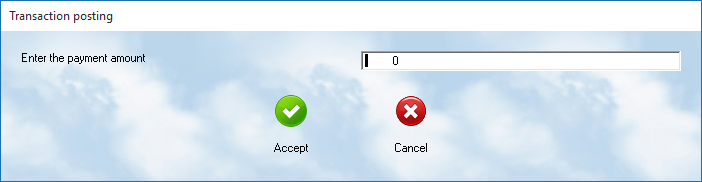
4.Enter the Payment amount
oThis becomes Available Funds
5.Apply funds to invoices (double-click method)
6.Select Process
Example
Client has:
•Invoice 1: $250
•Invoice 2: $400
Payment received: $600
System applies:
•$250 → Invoice 1 (paid in full)
•$350 → Invoice 2 (partial payment)
Remaining balance on Invoice 2: $50
Partial Payments and Credits
•You may apply less than the full invoice amount
•Any remaining funds can be:
oLeft unapplied temporarily
oStored as a credit
Best Practices
•Post payments daily to keep balances accurate
•Always verify Available Funds = 0 before processing
•Use clear Notes for tracking and audit purposes
•Avoid leaving unapplied credits unless intentional