Whenever a deposit is received for a workorder, it should be entered into MLS 2026 immediately for proper tracking and accounting.
Deposits are commonly used for:
•Special order parts
•Large repair jobs
•Insurance work
•Restoration projects
•Fleet services
•Customer commitment on high-value repairs
The Deposits option on the Workorder Development screen provides the tools necessary to properly manage these transactions.
Important Accounting Concept
In most states, deposits are not considered fully earned income until:
•The work has been completed
•The invoice is finalized
Because of this, deposits are generally handled differently than normal payments.
When using the MLS General Ledger system:
•Deposits are typically posted into temporary holding accounts
•These accounts are usually categorized under:
oAssets
oLiabilities
Once the workorder is closed:
•The deposits are then applied against the final invoice balance
Because deposits affect accounting differently:
•Deposit entries become locked after Daily Closing
•They cannot be freely edited afterward like normal workorder data
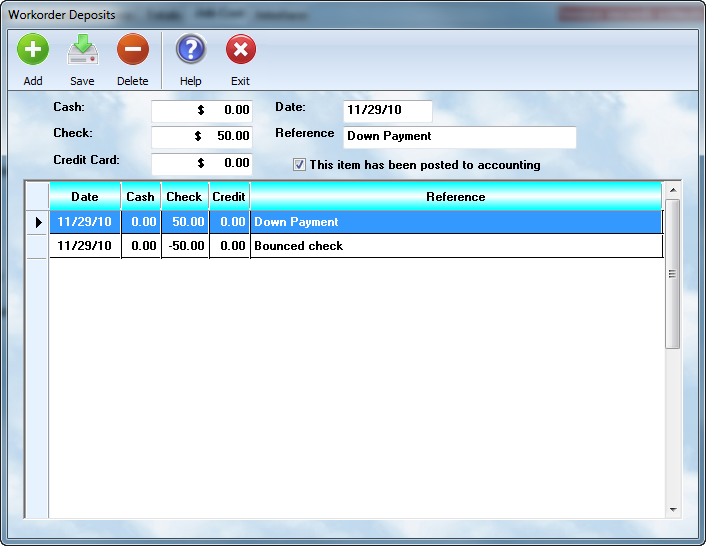
Posting a Deposit
To enter a deposit:
1.Open the workorder
2.Select the Deposit button
3.Add a new deposit entry
4.Complete the payment information
5.Press Save
The system tracks each deposit independently for proper accounting and historical reference.
Deposit Entry Fields
Date
The system automatically inserts the current date.
If necessary, you may change the value to reflect:
•An earlier payment
•A manually entered historical deposit
•A different accounting date
Cash
Enter any amount received in cash.
Check
Enter any amount received by check.
Credit Card
Enter any amount received by credit card.
If integrated Merchant Services are installed:
•The payment may also be processed directly through the credit card interface.
Reference
The Reference field is extremely important.
It should contain enough information to clearly identify the transaction later.
Examples:
•VISA 058898082989
•MC 4432 AUTH 91734
•CK 7104 BofA
•CASH RECEIPT #884
This field is especially useful for:
•Bank reconciliation
•Chargeback research
•Returned checks
•Audit trails
Posted Flag
Once a Daily Closing has processed the deposit:
•MLS 2026 marks the transaction as Posted
This indicates:
•The accounting transaction has already been finalized
•The deposit has already affected accounting totals
Correcting Deposit Errors
Before Daily Closing
If the Daily Closing has NOT yet been performed:
•Highlight the deposit entry
•Make the necessary corrections
•Press Save
The system will update the transaction normally.
After Daily Closing
Once Daily Closing has occurred:
•Deposit entries can no longer be directly edited
Instead, corrections must be handled using:
•Countermanding entries
This means creating a reversing transaction.
Example: Returned Check
Suppose:
•A customer gave a $50 check deposit
•The check later bounced
To correct the issue:
1.Create a new deposit entry
2.Enter:
o-50.00 in the Check field
3.Add a note such as:
oBAD CHECK
4.Save the transaction
The negative entry offsets the original deposit and preserves proper accounting history.
Why Deposits Matter
Proper deposit tracking helps:
•Protect the business financially
•Improve customer accountability
•Maintain accurate accounting
•Simplify refund handling
•Support audit trails
•Prevent disputes
Deposits are particularly important for:
•Custom work
•Long-term repairs
•Expensive parts orders
•Insurance claims
•Restoration services
Best Practices
•Always post deposits immediately
•Include detailed reference information
•Verify payment methods carefully
•Never alter posted accounting entries directly
•Use reversing entries for corrections after Daily Closing
•Review deposits regularly during balancing procedures
Accurate deposit handling is essential for maintaining:
•Correct receivable balances
•Accurate accounting
•Reliable customer histories
•Proper financial reporting