The Primary Workorder Manager is the operational center of MLS 2026.
It provides immediate access to all active workorders and serves as the control point for creating, editing, printing, processing, and closing service tickets.
Because virtually all daily business activity flows through the Workorder system, proper understanding of this screen is essential to efficient operation.
Well-written workorders:
•Improve communication
•Increase accuracy
•Reduce misunderstandings
•Strengthen customer confidence
•Improve technician efficiency
•Enhance business reporting and accounting
When you press the Orders button on the MLS 2026 main screen, the Primary Workorder Manager will open.
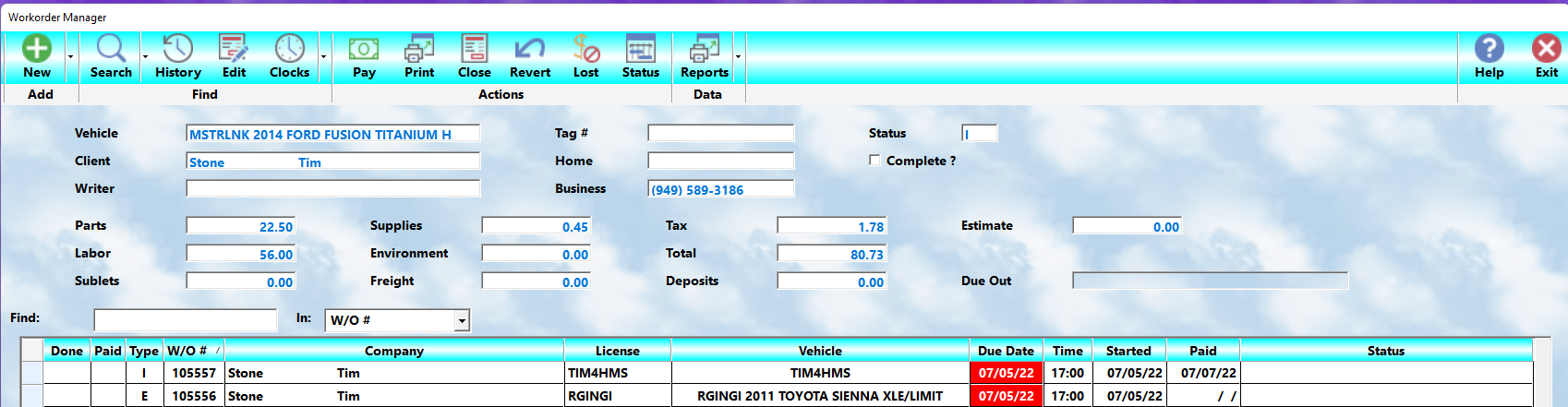
By default, the display shows all active workorders currently in process.
Using the Search option allows access to:
•Closed workorders
•Historical invoices
•Estimates
•Vehicle history
•Prior services
•Archived transactions
Double-clicking any highlighted workorder will immediately open it for editing and review.
The Browse List
The lower section of the screen contains the Browse List showing individual workorders.
The upper section displays summary information for whichever workorder is currently highlighted in the browse.
As you move through the list using:
•Up/Down Arrow keys
•Mouse wheel
•Scroll bar
•Page Up/Page Down
…the summary information automatically updates.
The browse display provides rapid access to:
•Workorder number
•Vehicle information
•Client information
•Service status
•Financial totals
•Due dates
•Processing stage
This allows managers and service writers to monitor shop activity quickly without opening every workorder individually.
Workorder Status Indicators
The far-left column of the browse displays the current processing stage of the workorder.
Typical indicators include:
•🞏 — Workorder is currently active and in progress
•✓ — Technician work is complete
• — Payment has been posted and the workorder is ready to close
These visual indicators provide quick workflow management for the front office and service advisors.
Workorder Functions
The buttons across the top of the screen provide access to all major workorder operations.
(Images/icons will be inserted in the final formatted manual.)
 Add New Workorder
Creates a new workorder and automatically assigns the next available workorder number.
When opening a new workorder, MLS 2026 will ask whether the ticket should begin as:
•Estimate
•Invoice
•Counter Sale
The selected type determines the initial workflow.
 Search Workorders
Provides powerful lookup and history functions.
You may search:
•Active workorders
•Closed workorders
•By client name
•By vehicle license
•By workorder number
•By invoice number
•By date ranges
•By status
This provides complete access to historical service information.
 Vehicle Service History
Displays the complete service history for the highlighted vehicle.
This includes:
•Prior repairs
•Recommendations
•Previous invoices
•Service dates
•Mileage history
This function is extremely valuable for diagnostics, maintenance tracking, and customer communication.
 Edit Workorder
Opens the highlighted workorder for editing.
This is the primary function used throughout daily operation.
You may also open a workorder by:
•Double-clicking the browse line
•Pressing Enter on the highlighted record
 Timeclocks
Provides access to the employee timeclock system.
Technicians may:
•Clock in
•Clock out
•Track labor time
•Record job activity
 Payment Posting
Allows payments to be entered against the highlighted workorder.
MLS 2026 supports:
•Cash
•Check
•Credit card
•Split payments
•Accounts receivable posting
Payment activity is automatically integrated into accounting functions.
 Print Workorder
Prints the selected document.
Depending on the workorder stage, this may include:
•Estimates
•Worksheets
•Invoices
•Counter sales
Printing may be directed:
•To a printer
•To print preview mode
•To PDF output
Many shops configure:
•One shared network printer for estimates/invoices
•A separate printer for technician worksheets
This allows front office and shop production printing to operate independently.
 Close Workorder
Closing a workorder finalizes the transaction.
This process updates:
•Sales totals
•Inventory
•Labor history
•Vehicle history
•Client history
•Accounting records
•Taxes
•Receivables
•Reporting systems
Closing a workorder is one of the most important processing steps in MLS 2026.
 Reopen Workorder
Allows a previously closed workorder to be reopened.
This function should be used cautiously.
When a workorder is reopened:
•MLS 2026 creates reversing accounting entries
•Re-closing the ticket creates new postings
•Payment dates govern accounting impact
Administrative review is recommended whenever reopening invoices.
 Lost Sales Tracking
Allows tracking of sales lost because inventory was unavailable.
This information can help:
•Improve stocking decisions
•Identify missed opportunities
•Improve purchasing analysis
 Graphical Workorder Status Board
Displays all active workorders visually by current status.
Typical columns include:
•Working
•Hold
•Sublet
•Testing
•Ready
Color indicators provide rapid shop-floor visibility.
This feature is particularly valuable in larger or higher-volume facilities.
Reports
Provides access to all workorder-related reports.
Reports may include:
•Open workorders
•Closed invoices
•Sales summaries
•Technician productivity
•Parts usage
•Payment reports
•Tax reports
•Credit card reports
•Historical analysis
Reports may be:
•Viewed onscreen
•Printed
•Exported
•Emailed as PDF files
 Exit
Exit
Leaves the Primary Workorder Manager and returns to the MLS 2026 main screen.
Starting a New Workorder
When creating a new workorder for the first time, MLS 2026 will ask whether the transaction should begin as:
•Estimate
•Invoice
•Counter Sale
Each type has a slightly different workflow and purpose.
The next sections of this manual explain:
•Creating new workorders
•Selecting clients and vehicles
•Estimates
•Counter sales
•Worksheet processing
•Workorder editing
•Labor and parts entry
•Closing procedures
•Printing and delivery options
in complete detail.