MLS 2026 includes a fully integrated:
👉 Employee Time Clock
system that allows employees to:
•clock in
•clock out
•track work sessions
•record break periods
•accumulate payroll hours
automatically.
The Time Clock integrates directly with:
•Payroll Processing
•Gross Pay calculations
•employee payroll records
•payroll reporting
This helps eliminate:
•manual time calculations
•handwritten timecards
•payroll hour entry errors
while improving payroll accuracy.
Accessing the Time Clock
The:
👉 Time Clock
is accessed from:
•the main toolbar
•using the Clock icon
or
•through the Employees menu
Employees use this function throughout the day to:
•begin work sessions
•stop work sessions
•track breaks
•accumulate hours worked
Using the Time Clock
At the beginning of the workday:
👉 the employee selects:
•New
to create a new daily timecard record.
Once the record opens:
👉 the employee selects their name
from the Employee list using the dropdown selection box.
Starting a Work Session
To begin working:
👉 the employee presses:
•the Start button
for the session.
The system immediately begins:
•recording the work period
•tracking elapsed time
•accumulating payroll hours
automatically.
Taking Breaks
When the employee:
•leaves for lunch
•takes a break
•temporarily leaves work
they return to the Time Clock screen and:
👉 press the Stop button
to end the current work session.
This prevents:
•accidental over-calculation of hours
•incorrect payroll totals
•inaccurate overtime calculations
Returning From Breaks
When the employee returns to work:
👉 they again access the Time Clock
and:
•start the next available session
The employee may:
•clock in and out multiple times during the day
as necessary.
Each work session is tracked separately and accumulated into:
👉 the total daily hours worked.
Daily Timecards
⚠️ A new timecard record must be created each workday.
The system organizes timecards by:
•employee
•date
•work sessions
This structure helps maintain:
•accurate payroll history
•organized reporting
•reliable payroll calculations
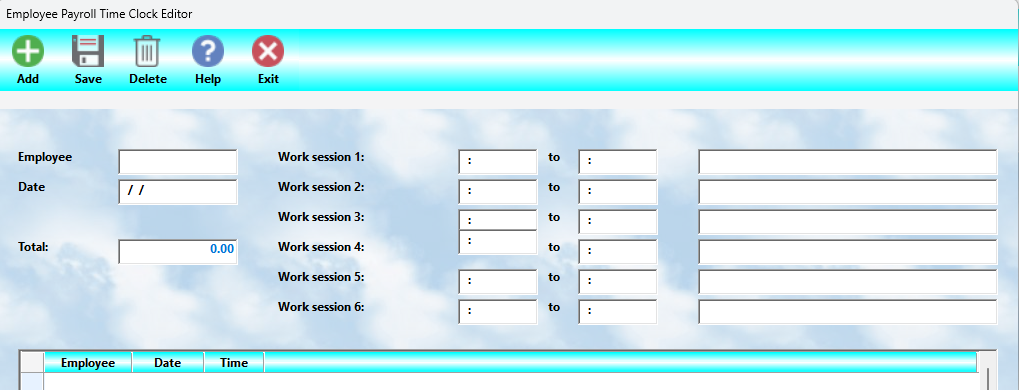
Time Card Editor
The:
👉 Time Card Editor
allows management to:
•review timecards
•edit entries
•create manual records
•correct mistakes
The editor is accessed separately through:
👉 Payroll → Edit
or the Payroll Edit functions.
Time Card Display
Within the editor:
👉 current timecards are displayed:
•by employee
•by date order
The screen shows:
•check-in times
•check-out times
•work sessions
•total calculated time
for each employee.
Manual Entries
Timecards may also be entered manually.
This is useful when:
•employees forget to clock in
•hardware problems occur
•prior records must be reconstructed
•management enters corrected data
To manually create a timecard:
👉 select:
•Add
Then enter:
•employee code
•date
•start times
•stop times
as prompted.
Editing Timecards
Any displayed timecard may be edited.
To modify a timecard:
👉 highlight the desired entry
and make the necessary changes.
Once editing is complete:
👉 select:
•Save
to retain the changes.
MLS 2026 automatically:
•recalculates the total hours
•updates payroll calculations
for the modified record.
Time Clock Reports
Detailed Time Clock reports are available through:
👉 Payroll Reports
These reports may be used for:
•payroll verification
•employee review
•labor tracking
•attendance monitoring
•payroll auditing
Automatic Payroll Integration
One of the major advantages of the MLS 2026 Time Clock system is:
👉 automatic payroll integration.
During:
👉 Payroll Processing → Gross Pay
the system automatically:
•calculates timecard totals
•applies payroll hours
•updates employee payroll records
•closes processed timecards
This greatly simplifies payroll preparation.
Why Accurate Time Tracking Matters
⚠️ Accurate employee time tracking is critical for:
•payroll accuracy
•overtime compliance
•labor reporting
•employee accountability
•payroll auditing
Improper or incomplete time records can create:
•payroll disputes
•overtime errors
•labor law issues
•accounting discrepancies
Recommended Time Clock Policies
Businesses should establish clear policies regarding:
•clock-in requirements
•break procedures
•overtime approval
•manual corrections
•missed punches
•supervisor review
Clear procedures help ensure:
•consistent payroll processing
•accurate labor records
•fewer payroll corrections
Recommended Best Practices
When using the Time Clock system:
•Require employees to clock in/out consistently
•Review timecards regularly
•Correct missing punches promptly
•Verify overtime carefully
•Use manual entries only when necessary
•Retain time reports for payroll audit purposes
•Review payroll totals before final processing
Recommended Companion Sections
This section works closely with:
•Gross Pay Processing and Review
•Employee Pay Methods
•Payroll Processing
•Payroll Reports
•Payroll Troubleshooting
•Payroll Accounting
Together, these sections provide a complete employee time tracking and payroll processing workflow within MLS 2026.