MLS 2026 includes a standard Chart of Accounts when installed. Most businesses begin with this default setup and then:
•Modify accounts
•Add new accounts
•Remove unused accounts
•Customize the structure for their operation
The General Ledger Editor is accessed through:
•Ledger → Edit
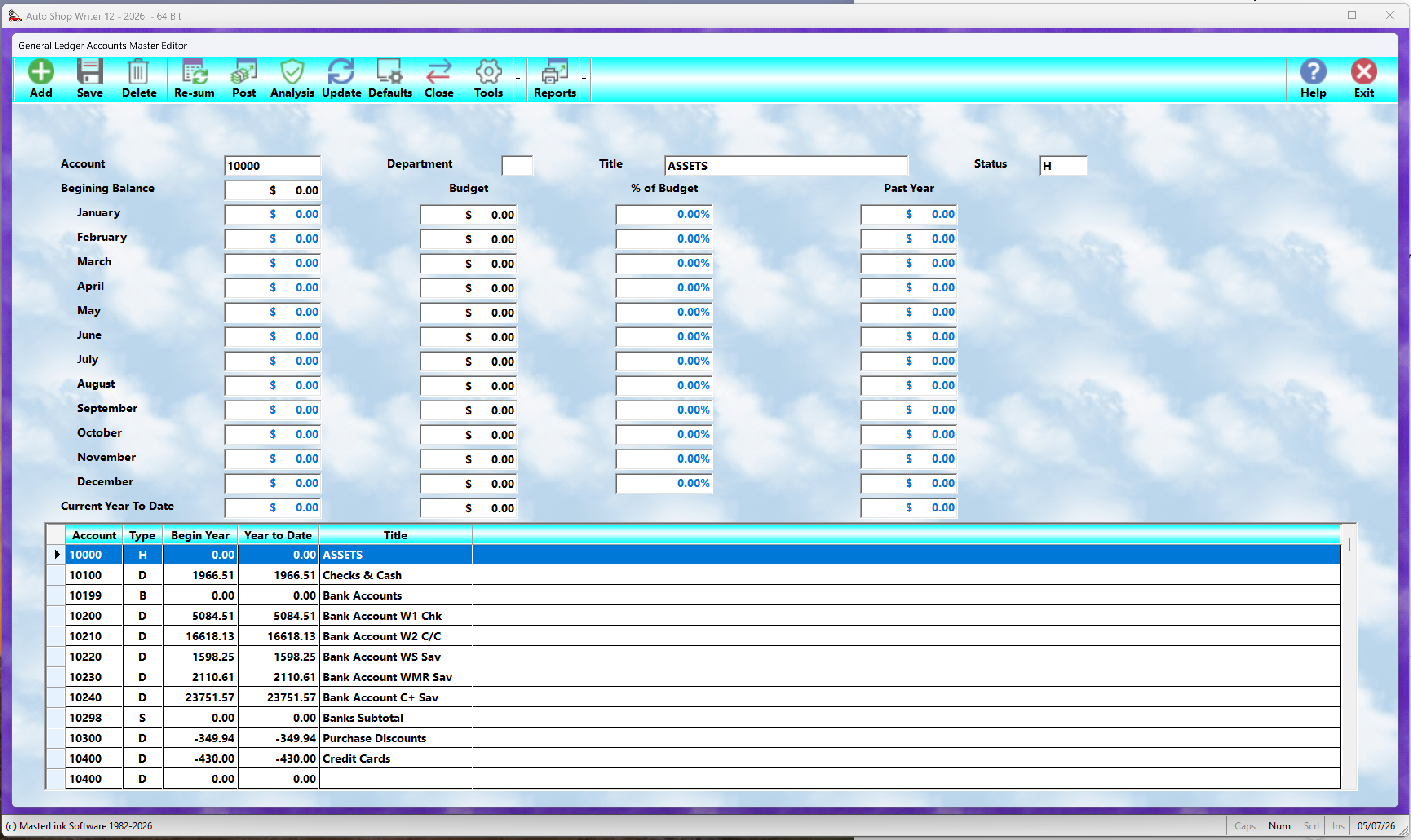
When opened, the Chart of Accounts appears in the lower browse section of the screen.
(Insert General Ledger Edit screen here.)
Selecting an account allows you to view and edit its information in the upper portion of the window.
⚠️ Remember to select Save after making changes.
Some fields may not be edited because they contain:
•System-calculated values
•Historical totals
•Automatically maintained balances
General Ledger Controls
 Add
Add
Creates a new General Ledger account.
A blank account record is added for data entry.
 Save
Save
Permanently saves changes made to the selected account.
 Delete
Removes the selected account.
⚠️ Never delete an account that contains current-year financial activity.
Doing so may:
•Damage reporting integrity
•Create balancing problems
•Affect financial history
 Re-Sum
Recalculates totals for the selected General Ledger account.
Useful if:
•Totals appear incorrect
•Data recovery was performed
•Balances need verification
 Post
Post
Allows manual posting of General Ledger transactions.
This is most often used:
•To correct accounting errors
•To enter adjustments
•To add manual journal entries
 Analysis
Reviews the General Ledger structure and totals to verify that the system is balanced properly.
This should normally be performed before monthly closing.
 Update
Updates totals and balances for all General Ledger accounts.
 Defaults
Sets the default General Ledger account numbers used throughout MLS 2026.
Examples include:
•Sales accounts
•Receivable accounts
•Payable accounts
•Inventory accounts
•Tax accounts
 Close
Close
Performs the monthly General Ledger closing.
⚠️ Run this only after:
•Analysis confirms the ledger is balanced
Closings may be performed multiple times if needed.
 Reports
Provides access to all General Ledger reports, including:
•Balance Sheet
•Profit & Loss Statement
•Transaction reports
•Account summaries
General Ledger Data Fields
Account Number
Each General Ledger account must have a unique account number.
MLS 2026 uses:
•5-digit account numbers
Accounts are displayed and reported in numerical order.
Standard Account Ranges
Based on standard accounting structure, account ranges are normally assigned as follows:
10000–19999 Assets
20000–29999 Liabilities
30000–39999 Equity
40000–49999 Income
50000–69999 Expenses
This structure helps organize:
•Reports
•Subtotals
•Financial statements
Planning Account Numbers
When designing a Chart of Accounts:
•Leave spacing between major groups
•Leave room for future additions
Typical recommendations:
•Major groups spaced by 1000
•Individual accounts spaced by 100
This makes future expansion much easier.
Department Code
An optional single-character department code may be assigned to an account.
Departments allow reporting by:
•Service category
•Business division
•Sales area
Examples:
•Mechanical
•Tires
•Parts
•Fleet
⚠️ Departments are optional.
If departments are not being used:
👉 leave this field blank.
Important Department Note
When departments are enabled:
•MLS 2026 tracks department totals separately
•Department reporting becomes available
However:
•Departments do NOT affect the overall General Ledger balance
They are strictly reporting categories.
Account Title
The Account Title is the descriptive name assigned to the account.
Examples:
•Accounts Payable
•Checking Account
•Parts Expense
•Utilities Expense
Titles should clearly describe the purpose of the account.
Account Status Codes
Each General Ledger line is assigned a Status Code that determines how MLS 2026 treats the entry during reporting.
Status Code Definitions
H = Main Heading
T = Title / Category Label
B = Begin Subtotal Group
S = Print Subtotal
G = Print Grand Total
D = Debit-Balance Account
C = Credit-Balance Account
Understanding Status Codes
Only:
•Debit accounts
•Credit accounts
maintain financial totals.
All other status types control:
•Formatting
•Report organization
•Subtotals and totals
Subtotal Processing
When MLS 2026 encounters:
•B → subtotal calculator resets to zero
•S → subtotal prints and resets
•G → grand total prints and resets totals
This structure allows highly organized financial reports.
Beginning Balance
The Beginning Balance represents the opening value of the account at the start of the fiscal year.
Examples:
•Bank balances
•Loan balances
•Asset totals
Profit & Loss accounts usually begin the year at:
•0.00
because they track current-year activity only.
Budget Amount
Optional monthly budget amounts may be entered for comparison purposes.
MLS 2026 can compare:
•Actual totals
against
•Budgeted amounts
This is especially useful for:
•Income accounts
•Expense accounts
Past Year Totals
Previous-year balances and monthly totals are displayed for comparison purposes.
These values are created automatically during year-end processing.
Current Totals
Current-year totals are displayed at the bottom of the screen.
These totals are calculated automatically and cannot be edited manually.
Setting Up the Chart of Accounts
There are two common approaches to building a General Ledger.
Method 1 — Build a Ledger from Scratch
This method is used when creating a completely custom Chart of Accounts.
The general process is:
1.Divide accounts into the five major sections:
oAssets
oLiabilities
oEquity
oIncome
oExpenses
2.Group related accounts together
3.Add:
oHeadings
oTitles
oSubtotals
oGrand totals
4.Assign logical account numbers
5.Leave room for future expansion
This method requires accounting planning and experience.
Method 2 — Modify the Included Ledger (Recommended)
Most businesses use the included MLS 2026 Chart of Accounts as a starting point.
Typical customization includes:
•Adding new accounts
•Removing unused accounts
•Renaming accounts
•Adjusting organization
This approach is:
•Faster
•Easier
•Less error-prone
and is recommended for most users.
Best Practices
•Start with the default Chart of Accounts whenever possible
•Make changes gradually
•Leave room for future account additions
•Avoid deleting accounts with activity
•Run Analysis before monthly closing
•Keep account titles clear and descriptive
Important Perspective
Most MLS 2026 users are not professional accountants.
The included General Ledger structure was designed specifically to provide:
•A working accounting system immediately
•Standard financial reporting
•A safe starting point for customization
In most cases:
👉 modifying the existing structure is far easier than creating one from scratch.