Files Menu
The Files menu in DataManager 2026 contains the core database maintenance utilities for MLS 2026.
These functions are powerful administrative tools and should normally be used only by the system administrator.
The options in this menu are:
•New
•Index
•Backup
•Restore
⚠️ Because these functions work directly with the database structure itself, great care should be exercised before using them.
New
Before MLS 2026 can be used, the program must create its database structure.
The New option builds empty data files for the system.
When run for the first time:
•the program creates all required database files automatically
If the utility is run later:
•the system checks whether each file already exists
•if it does, you will be asked whether you wish to replace it
If a database file has been accidentally deleted or damaged:
•the utility can rebuild that specific file
⚠️ IMPORTANT
If you replace an existing file, all data previously contained in that file will be permanently lost.
Always verify that:
•you have a current backup
•you understand exactly which files are being replaced
before proceeding.
Daily backups are strongly recommended.
Index
MLS 2026 uses special files called indexes to:
•organize records
•accelerate searches
•improve browse speed
•maintain sorting order
These index files use the:
.CDX
file extension.
Why Reindexing Matters
Sometimes records may appear to:
•disappear
•display out of order
•fail during searches
In most cases, the actual data still exists and only the index pointers have become damaged or corrupted. This is commonly referred to as:
a blown index
Reindexing rebuilds the pointers and usually restores normal operation immediately.
Important Notes About Reindexing
•Reindexing does NOT change the actual database records stored in the .DBF files
•It only rebuilds the search and organization structures
•Reindexing is usually only necessary when problems appear
•Regular daily reindexing is not required
Before Reindexing
⚠️ All users should exit MLS 2026 before reindexing begins.
Only one computer should remain in the system:
the one performing the reindex operation
This prevents:
•file conflicts
•damaged indexes
•incomplete rebuilds
How To Reindex
1.Open the Index utility
2.Check the boxes beside the file groups you wish to rebuild
3.Press OK to begin
You may:
•rebuild individual groups
or
•rebuild all indexes at once
Workstation Access
The Index utility is also available from:
Tools
within MLS 2026 workstations.
Even when started from a workstation:
•the rebuilding actually occurs on the server
•the results apply to ALL workstations simultaneously
Important Reminder
Indexing utilities are maintenance tools only.
They are NOT a replacement for:
•daily backups
•proper data protection
•offsite storage
Always maintain reliable backups of your system.
Backup / Restore
The Backup and Restore utilities protect your business against:
•hardware failures
•accidental deletion
•data corruption
•malware attacks
•failed updates
These utilities should be part of your normal administrative procedures.
Backup
When installing updates, MLS 2026 may occasionally need to:
•modify database structures
•update files
•rebuild internal data
Before these operations occur, DataManager may prompt you to create a backup.
Selecting A Backup Location
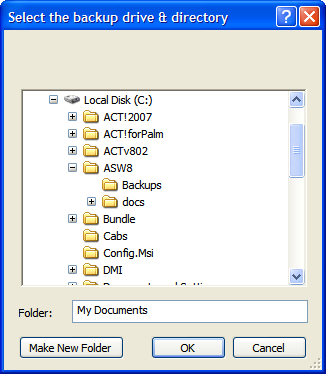
Browse the folder tree and select the desired backup location.
Most installations store backups:
•inside the MLS2026s folder
or
•in a dedicated Backups subfolder
The system will:
•compress the backup automatically
•create an archive file
•name the backup using the current date
This makes it easy to identify restore points later.
Portable Backup Media
You may also back up to:
•external drives
•USB flash drives
•portable SSD devices
•network locations
Portable drives are useful for:
•offsite storage
•disaster recovery
•theft protection
However, removable media should be handled carefully and stored securely.
Best Practice Recommendations
A good backup strategy includes:
•daily backups
•multiple generations retained
•offsite copies
•periodic testing of restore procedures
Your backups are your protection against catastrophic data loss.
Restore
The Restore utility allows you to recover data from a previously created backup archive.
Selecting The Backup
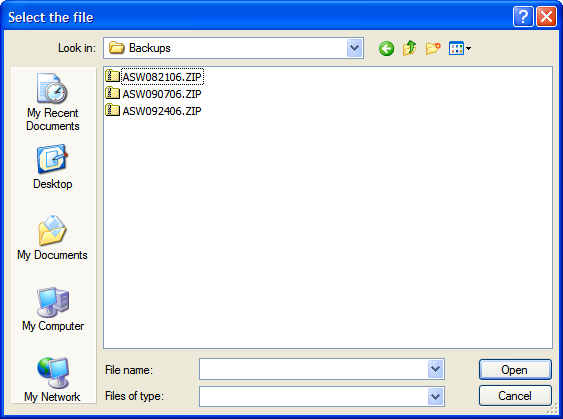
Choose the backup archive you wish to restore from.
Always verify:
•the backup date
•the source
•the contents
before continuing.
Full Restore
If you choose:
Restore All Files
then ALL current data files on the system will be replaced with the contents of the backup archive.
⚠️ This will overwrite current live data.
Partial Restore
If you choose:
No
to restoring all files, the system will display a list of files contained within the backup archive.
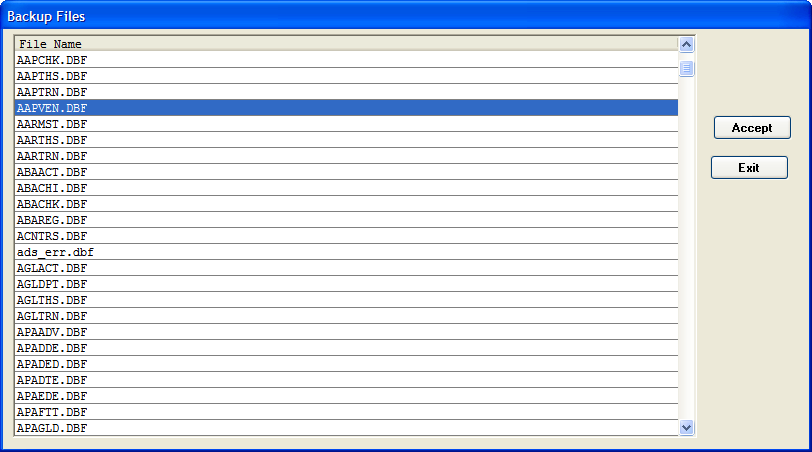
You may then:
•highlight specific files
•select Accept
•repeat for additional files
•then Exit when finished
The system will display:
•how many files are selected
•confirmation before proceeding
Once approved:
•the selected files will overwrite the current versions
Reindex After Restoring
After any restore operation:
ALWAYS rebuild all indexes
This ensures:
•proper record organization
•valid search pointers
•correct browse operation
•stable performance
Reindexing after a restore is considered mandatory maintenance.